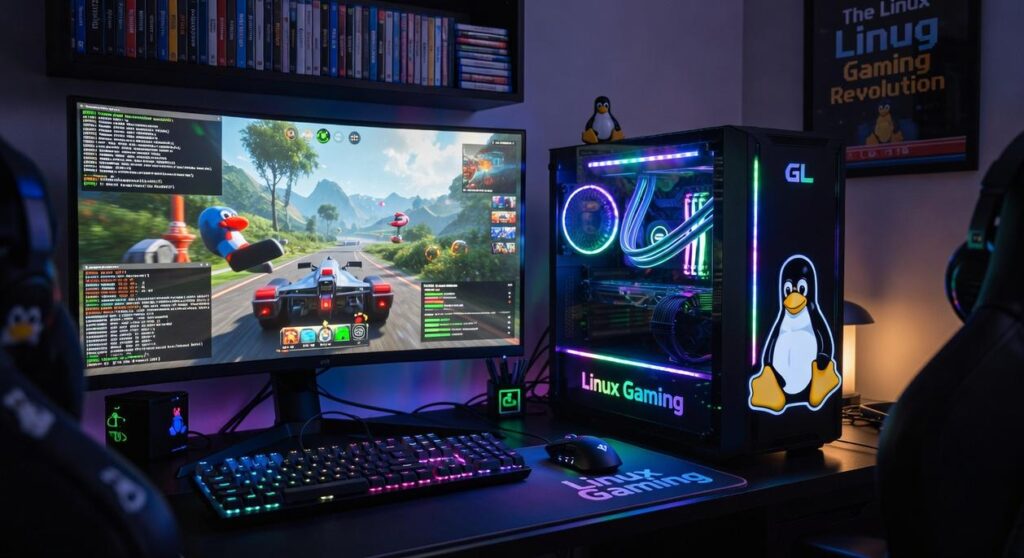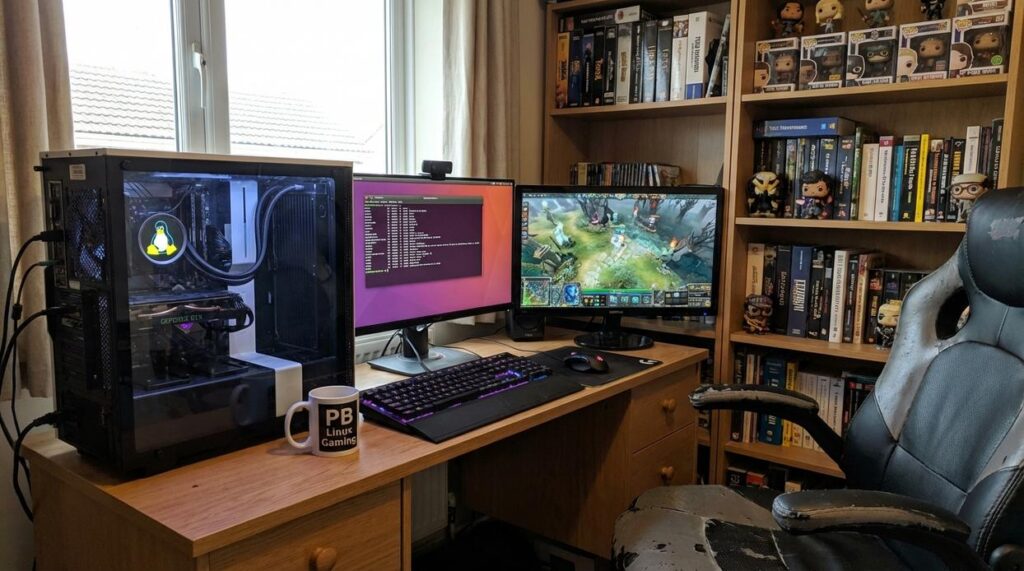
I’ve been gaming on Linux for years and I can tell you this: it’s not as complicated as people make it sound.
You’re probably here because you’ve heard Linux gaming is either impossible or requires a computer science degree. Neither is true.
Here’s the reality: Linux gives you more control over your gaming setup than Windows ever will. Better performance. No bloatware. And yeah, you can actually play most modern games now.
I’m going to show you how we do it at pblinuxgaming. Not theory. Real setups that work.
This guide pulls from years of community testing and troubleshooting. We’ve broken down what actually matters when you’re building a Linux gaming rig. The tools that work. The tweaks that make a difference.
You’ll learn the essentials: how Proton compatibility works, which performance optimizations are worth your time, and how to set up your system the right way from the start.
No gatekeeping. No assuming you already know everything about kernel modules or wine prefixes.
Just the knowledge you need to start gaming on Linux without the headaches most people warn you about.
The Core Philosophy: Why We Choose Linux for Gaming
I didn’t switch to Linux because it was easy.
I switched because Windows kept getting in my way.
Every time I wanted to tweak something, I hit a wall. Background processes eating RAM. Updates forcing restarts mid-session. A system that treated me like I couldn’t be trusted with my own hardware.
Some people say Windows is just fine for gaming. That Linux is too much work for marginal gains. That you’re better off sticking with what works.
Fair point. If you’re happy with the default experience, Windows does work.
But here’s what that argument misses.
When you run Pblinuxgaming, you’re not just playing games. You’re running a system that does exactly what you tell it to do and nothing else.
No telemetry. No forced updates. No mystery processes hogging your CPU while you’re trying to hit 144fps.
I can strip my system down to the essentials. Every service running in the background? I chose it. Every resource allocation? I set it.
That’s not just control for control’s sake. It’s performance. A lean Linux setup means more power goes directly to your game instead of feeding bloat you never asked for.
And yeah, there’s something satisfying about building it yourself. Picking your desktop environment. Configuring Proton. Getting that one stubborn game to run perfectly.
It’s like modding, but for your entire OS.
The open-source community makes this possible. Tools like Proton and Wine keep getting better because people share what they learn. No gatekeeping. Just constant improvement.
The Enthusiast’s Toolkit: Essential Software for Peak Performance
You’ve probably heard that Linux gaming is too complicated.
That you need to be some command line wizard just to launch a game.
I’m not going to lie to you. It used to be that way.
But things have changed. The tools we have now? They do most of the heavy lifting for you.
Some people still insist you should just stick with Windows for gaming. They say Linux will never match the compatibility or performance. That all these tools are just workarounds for a broken system.
Here’s what they’re missing.
The compatibility gap has closed. Fast. Games that wouldn’t even launch two years ago now run better on Linux than their native Windows counterparts (yeah, I was surprised too).
Let me walk you through the tools that make this possible.
Proton sits inside Steam and translates Windows game instructions into something Linux understands. You don’t install it separately. You don’t configure it. Steam handles everything. Click play and the game runs.
Most of the time, it just works.
When you want games from GOG or Epic, that’s where Lutris and Heroic Games Launcher come in. They give you one place to manage everything instead of juggling multiple launchers.
Now here’s something I wish someone had told me earlier.
MangoHud shows you real performance data while you play. FPS, temperatures, frame times. All overlaid on your screen. Goverlay lets you tweak what shows up without editing config files.
The driver situation is simpler than you think:
- AMD and Intel users stay current with Mesa drivers
- NVIDIA users grab the proprietary drivers
- Both get you day-one game support
That’s it. No secret sauce. Just keeping your graphics drivers updated like you would on any system.
The pblinuxgaming community has tested these tools across hundreds of games. They work.
Unlocking Performance: The Community’s Top Optimization Secrets
You’ve got your game installed on Linux.
It runs. But it doesn’t feel right.
The frame times are all over the place. You’re getting stutters in spots where your hardware should breeze through. And you know there’s performance sitting on the table that you’re just not getting. Despite the frame times being all over the place and the frustrating stutters that detract from gameplay, a visit to the developer’s Homepage might reveal optimizations or patches that could finally unlock the performance lurking just beneath the surface. As you navigate the frustrating stutters that detract from your gaming experience, be sure to check the developer’s for any updates that might help unlock the performance you know your hardware is capable of.
Here’s what most guides won’t tell you.
The default setup is fine for casual play. But if you want the kind of smooth experience that makes you forget you’re even on Linux? You need to dig a little deeper.
I’m going to walk you through the tweaks that actually matter. The ones the community has tested and proven over thousands of hours of gameplay.
Choosing Your Kernel
Your kernel is basically the bridge between your hardware and everything else. The standard one works. But gaming-optimized versions like XanMod or Liquorix are built different.
They use schedulers that prioritize responsiveness over everything else. What does that mean for you? Lower input lag and better frame pacing when your system is under load.
Think of it this way. The standard kernel treats your game like any other process. Gaming kernels know your game needs priority.
Mastering Proton Versions
Steam’s official Proton is good. But some games just don’t play nice with it.
That’s where Proton-GE comes in. The community builds it with patches and fixes that Valve hasn’t added yet (or might never add). I’ve seen games go from unplayable to butter smooth just by switching versions.
You can grab it from GitHub and drop it into your compatibilitytools.d folder. Then in Steam, you just select it for whatever game needs it.
Pro tip: Check ProtonDB before you troubleshoot. Someone’s probably already figured out which version works best for your game.
The Power of Gamemode
Feral Interactive built Gamemode to do one thing really well. The moment you launch a game, it tells your system to get serious.
It adjusts your CPU governor, changes process priorities, and kills background tasks that don’t need to run. Then when you close the game? Everything goes back to normal.
Most distros include it now. To check if it’s working, run gamemoded -s in your terminal. If it says “gamemode is active,” you’re good.
Eliminating Stutter
Shader pre-caching is probably the biggest performance win you’re not thinking about.
Here’s what happens without it. Your game needs to compile shaders on the fly. Every time it hits a new effect or scene, there’s a tiny freeze while your GPU processes it. That’s your stutter.
Steam handles this automatically now for most games. You’ll see “Processing Vulkan Shaders” when you first install something. Let it finish. Don’t skip it.
If you’re still getting hitches, clear your shader cache and let it rebuild. Sometimes old cached data causes more problems than it solves.
Upscaling Technologies
FSR, XeSS, and DLSS can save your frame rate on demanding titles. But only if they’re actually working.
For FSR, it’s baked into most games now and just works. XeSS needs Intel’s drivers but runs on any GPU. DLSS is trickier because you need the right Proton version and proper Nvidia drivers.
Check your in-game settings first. If the option is grayed out, you’re probably missing a driver component or using an incompatible Proton build.
You can find more Technology News Pblinuxgaming From Plugboxlinux coverage that breaks down compatibility by GPU and game.
Some people say these tweaks are overkill. That you should just accept Linux gaming for what it is.
But I’ve tested this stuff. The difference between a stock setup and an optimized one isn’t small. We’re talking 20-30% better frame times in some cases.
You don’t need to do all of this at once. Pick one thing. Test it. See if it helps your specific setup.
That’s how you actually improve performance instead of just hoping things get better.
Navigating Compatibility: The ProtonDB Mindset
You’re about to click install on that game you’ve been eyeing.
But wait.
Here’s what most new Linux gamers do wrong. They download first and troubleshoot later. Then they spend hours wondering why their game won’t launch or runs like garbage.
I learned this the hard way.
ProtonDB.com is your first stop. Always. Before you spend a single minute downloading, you check what other players have already figured out.
Think of it this way. Thousands of gamers have already tested that game you want. They’ve documented what works and what doesn’t. Why would you skip that intel?
Here’s how the ratings break down. Platinum means it runs perfectly out of the box. Gold works great with minor tweaks. Silver is playable but needs some work. Bronze barely runs.
But here’s the real secret.
Don’t just look at the rating. Scroll down and read the actual reports. That’s where you find the good stuff. Someone will mention the exact launch option that fixes audio. Another person shares which Proton version works best.
(I’ve saved myself countless headaches just by reading three or four recent reports.)
When you get a game working, report back. Seriously. The whole pblinuxgaming community runs on people sharing what they learn. You benefit from their knowledge. They benefit from yours.
See a Borked rating? Don’t panic.
It usually just means nobody’s found the right combination yet. Check the comments. Often someone’s already posted the fix using a specific Proton version or a command-line argument. In the ever-evolving landscape of gaming, especially within the realm of Linux, staying updated with “Technology News Pblinuxgaming From Plugboxlinux” can often lead you to the solutions for those pesky issues that arise when the right combination of settings or commands hasn’t yet been discovered by the community. In the ever-evolving landscape of gaming, especially within the realm of Linux, staying updated with “Technology News Pblinuxgaming From Plugboxlinux” can often provide the crucial insights needed to troubleshoot issues and enhance your gaming experience.
That’s the mindset shift. Compatibility isn’t a wall. It’s a puzzle with community-sourced solutions.
You’re Now Part of the Community
You came here looking for a community of Linux gaming enthusiasts.
Now you have the foundational knowledge that binds us together.
The perceived complexity of Linux gaming stops a lot of people before they even start. But here’s the thing: community knowledge and open-source tools solve that problem.
This approach works because it’s collaborative. Every fix and performance tweak gets shared and refined by thousands of passionate users.
You’re not figuring this out alone. Someone has already tested that game you want to play. Someone else has already optimized the settings you’re tweaking.
pblinuxgaming exists to bring all of that knowledge into one place. We break down the technical stuff so you can actually use it.
Your journey is just beginning.
Take these tools and tips. Start experimenting with your favorite games. Test different Proton versions and see what works best on your system.
Then share your results. Post your benchmarks. Help the next person who’s trying to get their game running.
That’s how this community grows stronger.
Welcome to the frontier of PC gaming. We’re glad you’re here. Reports Pblinuxgaming on Plugboxlinux.
 Founder & Chief Visionary Officer
Ask Eloria Neythanna how they got into tech industry buzz and you'll probably get a longer answer than you expected. The short version: Eloria started doing it, got genuinely hooked, and at some point realized they had accumulated enough hard-won knowledge that it would be a waste not to share it. So they started writing.
What makes Eloria worth reading is that they skips the obvious stuff. Nobody needs another surface-level take on Tech Industry Buzz, Proton Compatibility Insights, Linux Setup Optimization Tips. What readers actually want is the nuance — the part that only becomes clear after you've made a few mistakes and figured out why. That's the territory Eloria operates in. The writing is direct, occasionally blunt, and always built around what's actually true rather than what sounds good in an article. They has little patience for filler, which means they's pieces tend to be denser with real information than the average post on the same subject.
Eloria doesn't write to impress anyone. They writes because they has things to say that they genuinely thinks people should hear. That motivation — basic as it sounds — produces something noticeably different from content written for clicks or word count. Readers pick up on it. The comments on Eloria's work tend to reflect that.
Founder & Chief Visionary Officer
Ask Eloria Neythanna how they got into tech industry buzz and you'll probably get a longer answer than you expected. The short version: Eloria started doing it, got genuinely hooked, and at some point realized they had accumulated enough hard-won knowledge that it would be a waste not to share it. So they started writing.
What makes Eloria worth reading is that they skips the obvious stuff. Nobody needs another surface-level take on Tech Industry Buzz, Proton Compatibility Insights, Linux Setup Optimization Tips. What readers actually want is the nuance — the part that only becomes clear after you've made a few mistakes and figured out why. That's the territory Eloria operates in. The writing is direct, occasionally blunt, and always built around what's actually true rather than what sounds good in an article. They has little patience for filler, which means they's pieces tend to be denser with real information than the average post on the same subject.
Eloria doesn't write to impress anyone. They writes because they has things to say that they genuinely thinks people should hear. That motivation — basic as it sounds — produces something noticeably different from content written for clicks or word count. Readers pick up on it. The comments on Eloria's work tend to reflect that.