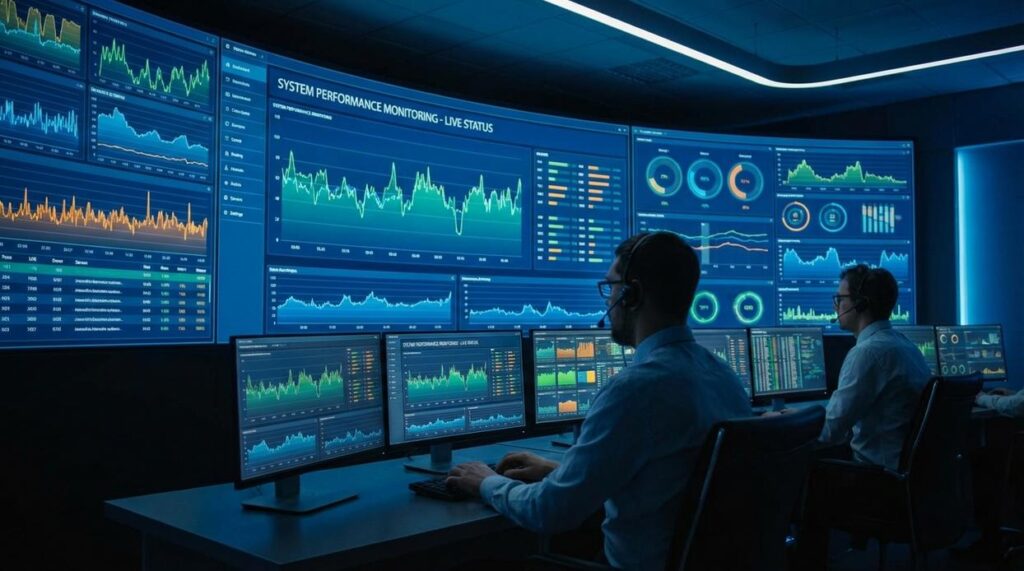
Frame drops, stuttering, and sudden lag can turn an intense Linux gaming session into a frustrating mess. If you’re here, you’re likely trying to figure out why your system isn’t delivering the smooth performance you know it’s capable of. This guide is built to solve that problem directly. We break down the most effective linux performance monitoring tools and show you how to use them to pinpoint CPU, GPU, RAM, thermal, and disk bottlenecks. Drawing from extensive real-world optimization experience, this article focuses only on the metrics that matter—so you can diagnose issues quickly and get back to peak FPS gameplay.
The Foundation: Essential Command-Line Monitoring
When a game stutters on Linux, your first move shouldn’t be guesswork—it should be visibility. That’s where linux performance monitoring tools come in.
htop: Your First Line of Defense
First, htop is a major upgrade over the traditional top command. It provides a color-coded, real-time dashboard of your system. You’ll see per-core CPU usage (helpful for spotting single-thread bottlenecks), memory consumption, and swap activity at a glance. If one core is maxed out while others idle, that’s a red flag for CPU-bound games.
More importantly, htop lists processes in descending resource order. So if a rogue browser tab or background updater is siphoning CPU cycles mid-match, you’ll catch it instantly (yes, even that “harmless” launcher). In short, it connects system load directly to in-game performance.
vmstat: Diagnosing Memory and Swap Issues
Next, vmstat gives a concise snapshot of memory behavior. The si (swap in) and so (swap out) columns show how often data moves between RAM and swap space. Swap is disk-backed memory—much slower than RAM. If those numbers spike during gameplay, that’s often the root cause of hitching.
Some argue modern systems with ample RAM don’t need this check. However, even 16GB can fill quickly with high-resolution textures and background services. Watching swap metrics prevents silent slowdowns.
iotop: Uncovering Disk Bottlenecks
Finally, iotop monitors disk read/write activity in real time. This is essential for HDD users or large open-world games that stream assets continuously. If loading screens drag or traversal stutters, iotop reveals which process is saturating your drive.
Think of it as your system’s task-force scanner—because smooth gameplay starts with knowing what’s happening under the hood.
Visualizing Performance: Graphical System Monitors
When you’re troubleshooting frame drops or random stutters, guessing isn’t enough. You need data. That’s where graphical system monitors—tools that display real-time CPU, memory, disk, and network activity—earn their keep.
GNOME System Monitor / KSysGuard: The Desktop Dashboard
These default GUI dashboards act like a live telemetry screen for your PC. Studies on performance diagnostics consistently show that visual monitoring reduces troubleshooting time because bottlenecks become immediately visible (ACM Queue, 2021). If your CPU spikes to 100% the moment your game loads a new map, you’ll see it instantly.
Sort the process list by:
- CPU usage to catch background tasks stealing cycles
- Memory usage to identify leaks
- Disk activity to spot asset-streaming slowdowns
For gamers running a second monitor, keeping this open during gameplay is like having mission control (yes, very NASA-core).
btop++: The Best of Both Worlds
If you prefer terminal power with visual clarity, btop++ delivers. It’s part of a new generation of linux performance monitoring tools that combine historical graphs, disk I/O metrics, and network throughput in one interface.
Evidence matters: sustained disk saturation above 90% utilization often correlates with in-game hitching, especially on older SSDs (Phoronix benchmark reports, 2023). btop++ makes that trend obvious.
Practical Use Case: Build a Monitoring Workspace
Create a dedicated workspace with your launcher and monitor side by side. Observe metrics:
- Before launch (baseline)
- During gameplay (peak load)
- After exit (resource recovery)
If disk bottlenecks appear, consider improving ssd performance on linux with simple tweaks.
Pro tip: Record a short session and compare resource graphs between smooth and laggy runs. Patterns rarely lie.
The Gamer’s Edge: In-Game Overlays for Real-Time Data
If you’re serious about performance tuning, MangoHud is non-negotiable. It’s the gold standard overlay for Linux gamers, displaying real-time metrics directly on-screen while you play. Think of it as your cockpit dashboard (because flying blind is fun… until it isn’t).
With MangoHud, you can monitor:
- FPS and a detailed frametime graph
- CPU/GPU temperatures
- VRAM usage and core clocks
Installation is typically handled through your package manager, and you can enable it in Steam launch options with mangohud %command%. Once active, it becomes one of the most practical linux performance monitoring tools available for diagnosing bottlenecks.
Interpreting the Frametime Graph
Most players obsess over FPS. But frametime—the time it takes to render each frame—is what actually determines smoothness. A stable, flat graph means consistent delivery. Spikes? That’s micro-stutter. You might see 120 FPS, yet feel hitching during camera pans. Those vertical jumps are your culprit.
Some argue that if FPS is high, the experience is fine. Not quite. Competitive players especially benefit from frametime consistency, where even small spikes can disrupt aim tracking.
GOverlay: Configuration Without the Headache
If editing config files sounds tedious, use GOverlay. It provides a GUI for adjusting layout, colors, and metrics.
Quick setup steps:
- Install MangoHud and GOverlay.
- Launch GOverlay and select desired metrics.
- Apply settings and test in-game.
Pro tip: Start minimal—too many stats clutter your screen and distract during intense moments (yes, even during boss fights worthy of Dark Souls).
From Data to Dominance: Putting Your Tools to Work
You set out to take control of your Linux gaming performance—and now you have the tools to do exactly that. With a layered approach that combines deep system insight and real-time overlays, you’re no longer guessing why performance dips happen. You can see them, measure them, and fix them.
Frame drops, stutters, and inconsistent performance aren’t mysteries anymore. By pairing btop++ with MangoHud, you create a powerful feedback loop: spot the issue in-game, confirm it with your linux performance monitoring tools, and make targeted adjustments that actually work.
Here’s your next move: install MangoHud, enable the frametime graph, and spend one full session observing how it behaves during combat, loading screens, and open-world exploration. Focus on consistency, not just FPS.
Thousands of Linux gamers rely on proven linux performance monitoring tools to eliminate bottlenecks and optimize their systems. Start using yours with intention—install, observe, tweak, and dominate your performance today.