If you’re searching for reliable guidance on Linux gaming, you likely want clear answers: which games run well, how to optimize performance, and what tools actually make a difference. This article is built to deliver exactly that. We break down essential open-source gaming tools, walk through practical performance tweaks, and explain how to get the most out of Proton for smoother gameplay.
A major focus is understanding protondb game compatibility—what ratings really mean, how to interpret user reports, and how to use that information to decide whether a title will run smoothly on your system. Instead of vague advice, you’ll get step-by-step insights and optimization strategies tested across real-world Linux setups.
Our recommendations are grounded in hands-on testing, deep familiarity with Linux environments, and continuous tracking of updates across drivers, kernels, and Proton releases. By the end, you’ll have a clearer path to better performance, fewer crashes, and a more seamless Linux gaming experience.
Unlock Your Steam Library: A Guide to Game Compatibility on Linux
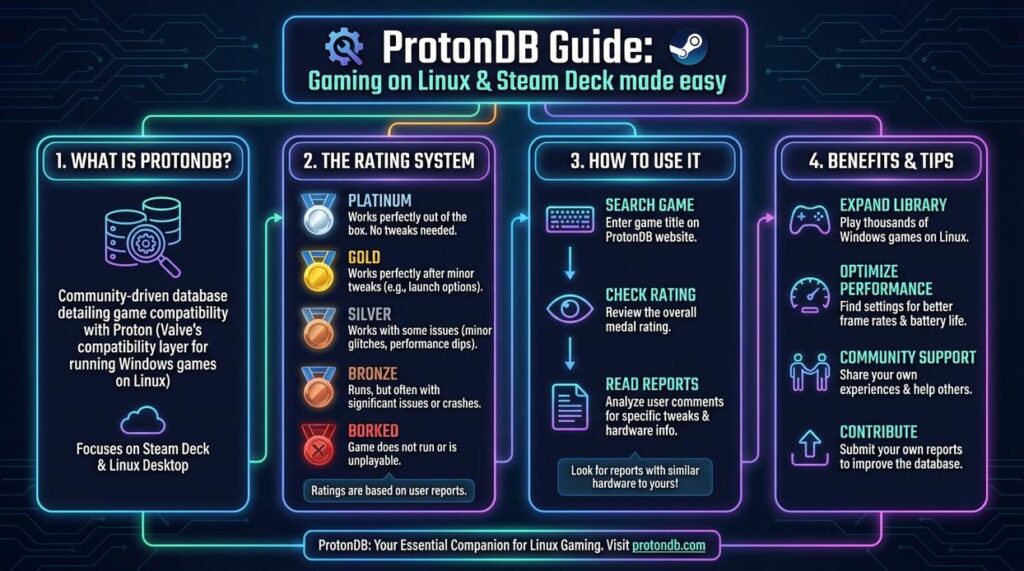
Switching to Linux doesn’t mean abandoning your backlog. The key tool is ProtonDB—a community database where players report how Windows games run through Proton (Valve’s Windows-to-Linux compatibility layer). Think of it as Yelp for your Steam library.
Here’s what I recommend:
- Search your title on protondb game compatibility before installing.
- Check its rating tier (Platinum to Borked) and read recent reports.
- Note required launch options or tweaks.
Some argue you should just install and hope. That wastes bandwidth (and patience). Verify first, then play confidently. Always cross-check your distro version and GPU drivers for best results before hitting install first.
What Is ProtonDB and Why It’s Your Most Important Tool

ProtonDB is a community-driven website that collects user reports on how Windows games perform on Linux using Valve’s Proton compatibility layer. Instead of relying on official support pages (which are often silent on Linux), you get real-world feedback from thousands of players running different GPUs, drivers, and distros.
Here’s the simple comparison:
- Native Linux version: Built specifically for Linux (no translation layer needed).
- Proton version: A Windows game running through Valve’s compatibility layer.
Some argue native ports are always better—and technically, that can be true. Native builds may offer tighter integration and fewer translation quirks. But Proton has matured dramatically (Valve reports thousands of playable titles via Proton), and many Windows-only games now run flawlessly.
That’s where protondb game compatibility becomes essential. One review is an opinion. Thousands of reports? That’s data. Think IMDb ratings vs. one critic. Crowdsourcing reveals patterns, workarounds, and performance expectations you simply won’t find anywhere else.
A Step-by-Step Guide to Checking Game Compatibility
Step 1: Navigating to the Website
First, head to ProtonDB.com. When the homepage loads, you’ll notice a clean, dark-themed layout—almost like stepping into a well-organized control room. At the top sits a prominent search bar. Below it, trending games and recent reports scroll by, giving you a quick pulse on what the community is testing right now. The interface feels minimal, but that’s intentional: less clutter, faster answers.
Step 2: Searching for Your Game
Next, click the search bar and type your game’s full title. Be precise. Searching “Doom Eternal” instead of just “Doom” helps you avoid sifting through similarly named entries. As you type, suggestions appear instantly, like a helpful autopilot guiding you in. Select the correct title from the dropdown to land on its summary page.
Step 3: Interpreting the Game’s Summary Page
Once inside, you’ll see several key elements at a glance. First, the official Steam Deck rating. Then, the overall ProtonDB medal rating. You’ll also find the number of user reports and the most frequently used Proton version (Proton is Valve’s compatibility layer that lets Windows games run on Linux). Together, these give you a quick snapshot of protondb game compatibility for that title.
Step 4: Analyzing the Tier Medal
The tier medal—Platinum, Gold, Silver, Bronze, or Borked—is your at-a-glance indicator. Platinum usually means near-native performance. Borked? Expect trouble. Think of it as the movie rating before you buy the ticket. However, some argue medals oversimplify complex setups. That’s fair—but they’re still an efficient starting point.
Step 5: Filtering Reports
Finally, scroll down and filter reports by GPU, CPU, or Proton version. This is where the real texture lies—the hum of detailed user feedback, specific launch options, and performance tweaks. If issues pop up, review this guide on common proton errors and how to fix them to troubleshoot effectively.
Understanding Linux Game Compatibility Medals
If you’ve ever checked a game’s Linux rating and felt like you were decoding Olympic results, you’re not alone. Let’s break this down simply.
These medals—commonly seen on sites like protondb game compatibility—describe how well a Windows game runs on Linux, often using Proton (a compatibility layer that lets Windows games run on Linux via Steam).
Here’s what each tier really means:
- Native – The game runs directly on Linux with no compatibility tools. Think of it as a device speaking its first language.
- Platinum – Runs perfectly with Proton, no tweaks needed. Install, click play, done.
- Gold – Fully playable, but you may need small adjustments (like a launch command or specific Proton version).
- Silver – Playable, though you might see minor glitches, stutters, or broken cutscenes.
- Bronze – It runs, but expect crashes or serious performance dips.
- Borked – Either won’t launch or is unplayable. Translation: wait for patches.
Some argue Silver and Bronze are “good enough.” That depends on your tolerance for friction (and patience). If you value smooth gameplay, aim for Platinum or Gold.
Understanding these tiers helps you avoid surprises—and refunds.
The Real Goldmine: User Reports That Actually Help
Ratings are helpful—but they’re summaries, not solutions. The real value lives in the user reports section. Think of it as the comment thread where people explain how they got a game running smoothly, not just whether it worked.
First, clarify the basics. When browsing protondb game compatibility, ratings like Gold or Platinum describe overall performance tiers. However, those labels don’t tell you why a game runs well—or doesn’t. That’s where reports matter.
Next, scan for specific keywords: “launch options” (custom startup commands), “Proton-GE” (a community-built Proton version), “Nvidia,” or “AMD.” These clues quickly point to tweaks that match your setup.
Equally important, check the poster’s hardware specs. A Platinum rating on a high-end GPU might translate to Silver on older hardware (context is everything).
Finally, look for exact fixes. Users often share copy‑paste launch commands that can turn stutter into smooth gameplay—sometimes in minutes.
From Information to Action
You now have a clear, repeatable system for judging Linux game viability. Instead of gambling on a purchase, you check protondb game compatibility and review ratings like Gold or Platinum, which signal near-native performance. That’s actionable data.
| Feature | Benefit |
| Rating Tiers | Quick stability snapshot |
| User Reports | Real hardware insights |
| Launch Flags | Faster setup |
Some argue tinkering is part of the fun. True (for a Saturday afternoon). But when you want to play, not troubleshoot, this method saves hours and refunds. Open ProtonDB and play.
Level Up Your Linux Gaming Performance Today
You came here looking for clarity on Linux gaming performance, Proton optimization, and compatibility—and now you have the roadmap to make your setup smoother, faster, and more reliable.
Linux gaming can be frustrating when games stutter, crash, or refuse to launch. Compatibility confusion and inconsistent performance are real pain points. But with the right tweaks, smart configuration choices, and careful attention to protondb game compatibility, you can turn your system into a powerful, stable gaming machine.
The key is simple: stay informed, test strategically, and optimize consistently. Small adjustments to Proton versions, drivers, launch options, and system settings can deliver major gains in stability and FPS.
Now it’s your move. Start by checking protondb game compatibility for your favorite titles, apply the recommended tweaks, and fine-tune your setup step by step. If you want trusted, battle-tested Linux gaming guides that cut through the noise, explore our performance breakdowns and optimization tutorials today. Join thousands of Linux gamers who rely on our proven tips to eliminate crashes, boost FPS, and finally game without limits.
 Founder & Chief Visionary Officer
Ask Eloria Neythanna how they got into tech industry buzz and you'll probably get a longer answer than you expected. The short version: Eloria started doing it, got genuinely hooked, and at some point realized they had accumulated enough hard-won knowledge that it would be a waste not to share it. So they started writing.
What makes Eloria worth reading is that they skips the obvious stuff. Nobody needs another surface-level take on Tech Industry Buzz, Proton Compatibility Insights, Linux Setup Optimization Tips. What readers actually want is the nuance — the part that only becomes clear after you've made a few mistakes and figured out why. That's the territory Eloria operates in. The writing is direct, occasionally blunt, and always built around what's actually true rather than what sounds good in an article. They has little patience for filler, which means they's pieces tend to be denser with real information than the average post on the same subject.
Eloria doesn't write to impress anyone. They writes because they has things to say that they genuinely thinks people should hear. That motivation — basic as it sounds — produces something noticeably different from content written for clicks or word count. Readers pick up on it. The comments on Eloria's work tend to reflect that.
Founder & Chief Visionary Officer
Ask Eloria Neythanna how they got into tech industry buzz and you'll probably get a longer answer than you expected. The short version: Eloria started doing it, got genuinely hooked, and at some point realized they had accumulated enough hard-won knowledge that it would be a waste not to share it. So they started writing.
What makes Eloria worth reading is that they skips the obvious stuff. Nobody needs another surface-level take on Tech Industry Buzz, Proton Compatibility Insights, Linux Setup Optimization Tips. What readers actually want is the nuance — the part that only becomes clear after you've made a few mistakes and figured out why. That's the territory Eloria operates in. The writing is direct, occasionally blunt, and always built around what's actually true rather than what sounds good in an article. They has little patience for filler, which means they's pieces tend to be denser with real information than the average post on the same subject.
Eloria doesn't write to impress anyone. They writes because they has things to say that they genuinely thinks people should hear. That motivation — basic as it sounds — produces something noticeably different from content written for clicks or word count. Readers pick up on it. The comments on Eloria's work tend to reflect that.