Just installed Linux and wondering what to do next? You’re not alone. Getting a fresh system up and running is exciting—but without the right steps, you could miss out on performance gains, essential tools, and critical optimizations that make your setup truly shine.
This guide delivers a practical, step-by-step linux post install checklist designed specifically for gamers and performance-focused users. Whether you’re setting up Proton for better game compatibility, fine-tuning system performance, or installing must-have open-source tools, we’ll walk you through exactly what matters—and why.
We base our recommendations on hands-on testing across multiple distributions, real-world gaming benchmarks, and deep experience with Linux performance tuning. Instead of generic advice, you’ll get targeted, actionable steps that improve stability, compatibility, and overall gaming performance.
By the end, your system won’t just be installed—it’ll be fully optimized and ready to perform at its best.
Step 1: System Updates and Essential Drivers
Before diving into the essential post-install steps for optimizing your new Linux system, be sure to check out our insights on the latest features in the “By Etruesports Etsiosapp Update” to enhance your setup experience.
Before tweaking performance or installing games, start with the foundation: updates. Think of this as the linux post install checklist kickoff.
Update Repositories and Upgrade Packages
Your package manager pulls software from online databases called repositories (trusted app libraries). Updating them ensures you receive the latest security patches and bug fixes.
- Debian/Ubuntu (APT):
sudo apt update && sudo apt upgrade -y
- Fedora:
sudo dnf upgrade --refresh
- CentOS/RHEL (YUM):
sudo yum update
Some argue you can skip this if the system “works fine.” That’s risky. Many exploits target outdated packages (CISA routinely flags unpatched vulnerabilities). Stability starts here.
Install Graphics Drivers
A driver is software that lets your OS talk to hardware.
- NVIDIA (proprietary):
sudo ubuntu-drivers autoinstall
- AMD/Intel (Mesa open-source drivers): Usually preinstalled; update via system upgrade.
Verify with:
glxinfo | grep "OpenGL renderer"
(Pro tip: If it says “llvmpipe,” you’re not using your GPU.)
Install CPU Microcode
Microcode is low-level CPU firmware that fixes hardware-level bugs and security flaws (like Spectre/Meltdown mitigations).
- Intel:
sudo apt install intel-microcode
- AMD:
sudo apt install amd64-microcode
Reboot after installation. It’s not flashy—but neither was updating the Matrix before Neo dodged bullets.
Step 2: Basic Security Hardening
Once your system boots cleanly, it’s time for basic security hardening—a critical part of any linux post install checklist.
Configure the Firewall (UFW)
Most Linux distros include UFW (Uncomplicated Firewall), but it’s often disabled by default.
Enable it:
sudo ufw enable
Allow essential traffic (for a typical desktop):
sudo ufw default deny incoming
sudo ufw default allow outgoing
If you use SSH:
sudo ufw allow 22/tcp
Check status anytime:
sudo ufw status verbose
Pro tip: Only open ports you actively use (yes, even if a tutorial says “just in case”).
Check User Permissions
Follow the principle of least privilege—a security concept meaning users only get the access they absolutely need (nothing more).
Confirm you’re not operating as root:
whoami
If it says root, stop. Create a standard user and use sudo for admin tasks:
sudo apt update
That temporary elevation reduces accidental damage (and limits malware impact).
Install and Configure Fail2ban
Fail2ban monitors logs and bans IPs after repeated failed login attempts—perfect for SSH brute-force protection.
Install it:
sudo apt install fail2ban
Create a local config:
sudo cp /etc/fail2ban/jail.conf /etc/fail2ban/jail.local
Enable SSH protection inside jail.local and restart:
sudo systemctl restart fail2ban
Exposing services? This step isn’t optional—it’s essential.
Step 3: Essential Software and Media Codecs
Fresh installs are clean—but also LIMITED. Out of the box, many distros skip proprietary tools for legal reasons (see Ubuntu licensing notes, Canonical). Some argue you should avoid non-free software entirely. That’s fair—open-source purists value transparency. But if you want Wi‑Fi drivers, NVIDIA support, or Netflix playback, you’ll likely need restricted packages. Practicality sometimes wins.
-
Enable Third-Party Repositories
On Ubuntu, activate restricted and multiverse in Software & Updates. These repositories contain proprietary drivers and codecs many users expect. -
Install Media Codecs
Run:
sudo apt install ubuntu-restricted-extras
This installs support for MP3, common video formats, and Microsoft fonts (yes, even Linux users open .docx sometimes). -
Set Up Flatpak
Some say native repos are enough. But universal managers deliver newer apps faster. Install Flatpak and add Flathub:
sudo apt install flatpak
flatpak remote-add --if-not-exists flathub https://flathub.org/repo/flathub.flatpakrepo
Consider this a core step in your linux post install checklist.
Step 4: Performance and Gaming Optimization
You’ve installed your distro. Everything runs. But have you ever wondered why your frame rates still feel… inconsistent?
This is where optimization turns a decent setup into a serious gaming machine.
Install Steam and Enable Proton
Steam is the gateway to Linux gaming. Install the native client from your distro’s repository, log in, then enable Steam Play (Proton) for all titles under Settings → Compatibility.
Proton is Valve’s compatibility layer (built on Wine) that allows Windows games to run on Linux. According to Valve’s Steam Hardware & Software Survey, thousands of titles are now playable via Proton. Why leave that library locked away?
Optimize CPU Performance Governor
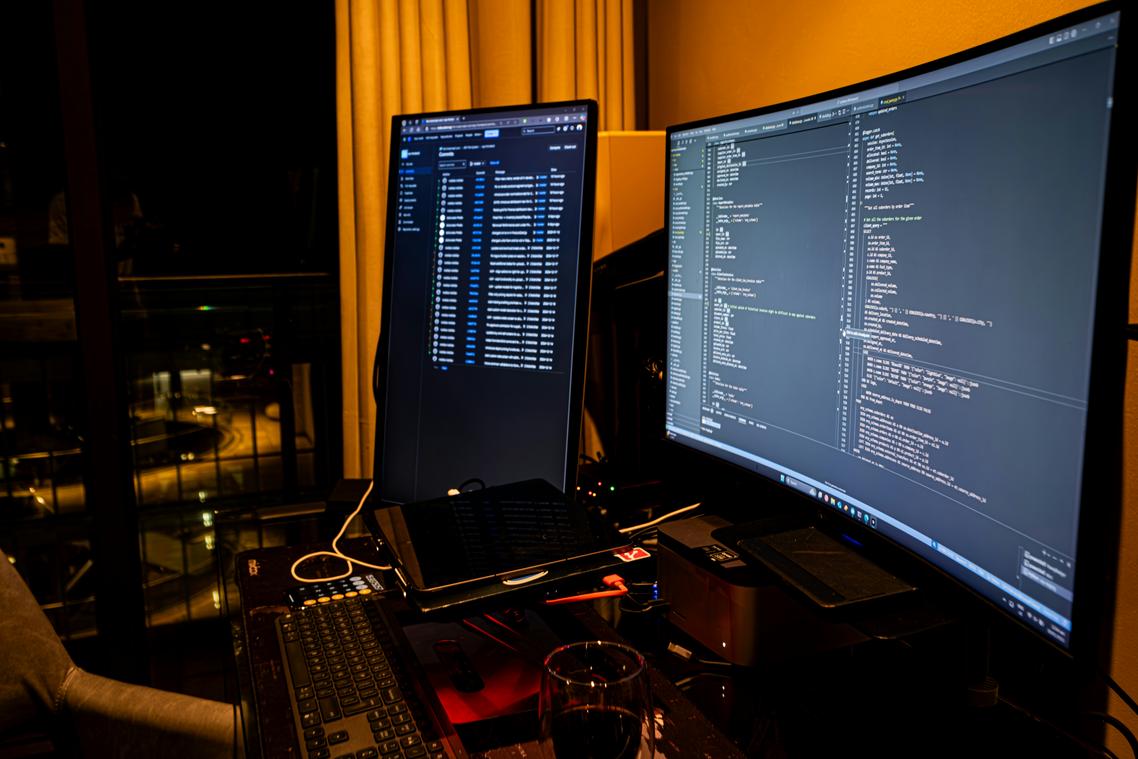
Your CPU governor controls how your processor scales speed.
- ondemand: ramps up when needed (balanced)
- performance: locks at max frequency (best for gaming)
- schedutil: dynamically scales using the Linux scheduler
For gaming sessions, switching to performance reduces stutter (especially in CPU-bound titles). Install cpupower-gui or use:
sudo cpupower frequency-set -g performance
Pro tip: switch back after gaming to save power.
Install GameMode
Feral Interactive’s GameMode temporarily optimizes your system when a game launches. It can adjust CPU governor, I/O priority, and more—automatically. Install it via your package manager and launch games with gamemoderun %command% in Steam.
Why manually tweak settings every time if automation exists?
Install Gaming Utilities
- MangoHud: real-time FPS and system overlay
- ProtonUp-Qt: manage Proton-GE versions easily
- Lutris: organize games from Epic, GOG, and others
If you’re building a linux post install checklist, these tools belong on it. After all, what’s the point of Linux gaming without control?
Lock In Your Linux Gaming Performance Today
You came here looking for a clear path to a smoother, more reliable Linux gaming setup — and now you have it. From Proton compatibility checks to driver tuning and system-level optimizations, you’ve seen exactly what it takes to eliminate stutter, boost FPS, and avoid the frustrating trial-and-error that holds so many players back.
The biggest pain point for Linux gamers isn’t lack of power — it’s misconfiguration. A single missed dependency, outdated driver, or skipped tweak can mean crashes, poor performance, or games that refuse to launch. That’s why following a structured linux post install checklist makes all the difference. It turns chaos into consistency and guesswork into control.
Now it’s your move.
Run through your setup again. Tighten the weak points. Apply the tweaks you haven’t implemented yet. And if you want step-by-step breakdowns, compatibility insights, and performance-tested optimization guides trusted by thousands of Linux gamers, dive into our latest resources and start optimizing today.
Stop fighting your system. Fine-tune it, launch your games, and experience Linux the way it was meant to perform.
 Founder & Chief Visionary Officer
Ask Eloria Neythanna how they got into tech industry buzz and you'll probably get a longer answer than you expected. The short version: Eloria started doing it, got genuinely hooked, and at some point realized they had accumulated enough hard-won knowledge that it would be a waste not to share it. So they started writing.
What makes Eloria worth reading is that they skips the obvious stuff. Nobody needs another surface-level take on Tech Industry Buzz, Proton Compatibility Insights, Linux Setup Optimization Tips. What readers actually want is the nuance — the part that only becomes clear after you've made a few mistakes and figured out why. That's the territory Eloria operates in. The writing is direct, occasionally blunt, and always built around what's actually true rather than what sounds good in an article. They has little patience for filler, which means they's pieces tend to be denser with real information than the average post on the same subject.
Eloria doesn't write to impress anyone. They writes because they has things to say that they genuinely thinks people should hear. That motivation — basic as it sounds — produces something noticeably different from content written for clicks or word count. Readers pick up on it. The comments on Eloria's work tend to reflect that.
Founder & Chief Visionary Officer
Ask Eloria Neythanna how they got into tech industry buzz and you'll probably get a longer answer than you expected. The short version: Eloria started doing it, got genuinely hooked, and at some point realized they had accumulated enough hard-won knowledge that it would be a waste not to share it. So they started writing.
What makes Eloria worth reading is that they skips the obvious stuff. Nobody needs another surface-level take on Tech Industry Buzz, Proton Compatibility Insights, Linux Setup Optimization Tips. What readers actually want is the nuance — the part that only becomes clear after you've made a few mistakes and figured out why. That's the territory Eloria operates in. The writing is direct, occasionally blunt, and always built around what's actually true rather than what sounds good in an article. They has little patience for filler, which means they's pieces tend to be denser with real information than the average post on the same subject.
Eloria doesn't write to impress anyone. They writes because they has things to say that they genuinely thinks people should hear. That motivation — basic as it sounds — produces something noticeably different from content written for clicks or word count. Readers pick up on it. The comments on Eloria's work tend to reflect that.