
If you’re tired of repeating the same commands every day, you’re not alone. From system updates and backups to file organization and log cleanup, manual processes drain time and increase the risk of costly mistakes. This practical guide to linux task automation shows you how to eliminate that friction for good. We’ll walk through the essential tools and proven techniques used to automate repetitive tasks in any Linux environment. Built on years of hands-on system optimization experience, this article delivers clear, actionable steps so you can create your first scripts and scheduled jobs—and start reclaiming your time immediately.
Why Automate? The Core Principles of Linux Efficiency
Automation isn’t just about saving a few keystrokes; it’s about building systems you can trust. In my view, the real power lies in consistency. When tasks run the same way every time, errors drop dramatically (and so does your stress level). Studies show automation reduces human error in repetitive processes by up to 90% (IBM). That’s not convenience—that’s reliability.
At first, setting up linux task automation feels like extra work. However, this is where the productivity flywheel kicks in. You invest time once, and in return you:
- Eliminate repetitive manual steps.
- Free mental space for creative problem-solving.
- Prevent small mistakes from snowballing.
For example, scheduled nightly backups quietly protect your data. Automatic log rotation prevents disk space meltdowns. Consistent dev or gaming environments mean fewer “it works on my machine” moments (we’ve all been there).
Some argue manual control is safer. I disagree. Thoughtful automation, like a well-trained R2-D2, keeps everything humming behind the scenes.
The Foundation: Mastering Cron for Scheduled Tasks
Open a terminal late at night and you can almost hear it—the quiet hum of the system waiting for instructions. That steady pulse is powered by cron, the built-in Linux task scheduler that runs silently in the background. Cron is a daemon (a background service) that executes commands at scheduled times, making linux task automation feel almost effortless.
To control it, you edit your crontab file using crontab -e. A cron job follows this pattern:
- * * * * command
Here’s how to decode it:
- Minute (0–59)
- Hour (0–23)
- Day of month (1–31)
- Month (1–12)
- Day of week (0–7, where 0 and 7 are Sunday)
Hands-on examples you can copy and paste:
-
Run a system update script every night at 2 AM
0 2 * * * /home/user/update.sh -
Clear the package manager cache every Sunday
0 3 * * 0 /usr/bin/apt-get clean -
Check for new driver updates every 12 hours
0 */12 * * * /usr/local/bin/check-drivers.sh
Some argue systemd timers are more modern—and they are—but cron remains lightweight, reliable, and beautifully simple (like a mechanical watch that just keeps ticking). Pro tip: always use absolute paths to avoid silent failures. Test jobs with harmless echo commands first before deploying widely.
Level Up with Shell Scripting: Your First Automation Script
What Is a Shell Script?
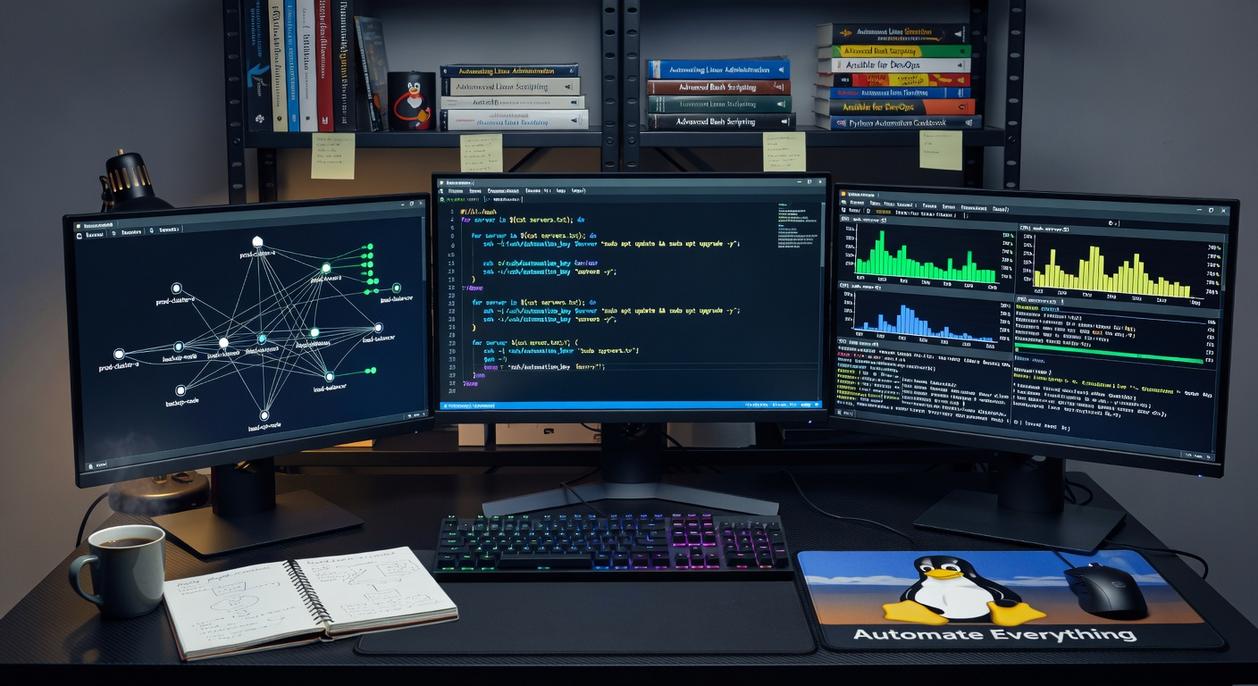
A shell script is simply a text file filled with commands your Linux shell (like Bash) can execute line by line. Think of it as a playlist for your terminal—press play, and it runs everything in order. Instead of typing the same maintenance commands every week, you bundle them together once. That’s the heart of linux task automation.
Some argue scripting is overkill for beginners. I disagree. If you can copy and paste commands, you can write a script—and you’ll save hours over time (future you will be grateful).
Building Block #1: The Shebang
The first line usually looks like this:
#!/bin/bash
This is called the shebang. It tells your system which interpreter should run the file. Without it, your script may behave unpredictably. I’ve seen people skip this and then blame Linux—don’t be that person.
Building Block #2: Variables and Commands
A variable stores data for reuse:
NAME="Gamer"
echo "Welcome, $NAME"
You can also run standard commands:
sudo apt update && sudo apt upgrade -y
That && means “run the second command only if the first succeeds.” Simple, but powerful.
Step-by-Step Script Creation
Step 1: Create the file:
touch update_and_clean.sh
Step 2: Make it executable:
chmod +x update_and_clean.sh
Step 3: Add content:
#!/bin/bash
# Update package lists
sudo apt update
# Upgrade installed packages
sudo apt upgrade -y
# Remove unnecessary packages
sudo apt autoremove -y
Step 4: Run it:
./update_and_clean.sh
For deeper maintenance strategy, review best package management practices for a clean linux system.
Pro tip: Keep scripts small and focused. It’s tempting to build a mega-script—but clarity beats cleverness every time.
Beyond the Basics: Using Aliases and Functions for Quick Wins
When it comes to linux task automation, small tweaks create BIG efficiency gains.
Aliases vs Functions isn’t just a technical comparison—it’s SPEED vs FLEXIBILITY.
Alias = Shortcut. An alias is a custom abbreviation for a longer command. Instead of typing a full system update every time, add this to your ~/.bashrc or ~/.zshrc file:
alias update='sudo apt update && sudo apt upgrade -y'
Now update does the heavy lifting. Quick. Clean. Done. (It’s basically autocorrect for your terminal.)
But aliases are static. No inputs. No variation.
Function = Smart Shortcut. Functions accept arguments and run multi-step logic. Example:
mcd() { mkdir -p "$1" && cd "$1"; }
Run mcd Projects and it creates and enters the folder instantly.
Some argue aliases are enough for daily use. Fair. But if you need adaptability, functions WIN.
Pro tip: Reload your shell with source ~/.bashrc after edits to activate changes immediately.
Putting It All Together: A Real-World Automation Workflow
Let’s make this practical. Imagine you need to back up a project folder every evening to a separate drive. No reminders. No manual copying. Just reliable automation.
The Script (The “What”)
Create a simple rsync script:
#!/bin/bash
TIMESTAMP=$(date +"%Y-%m-%d_%H-%M")
rsync -av --delete /home/user/Projects/ /mnt/backup/Projects_$TIMESTAMP/
Here, rsync (a fast file synchronization tool) copies files while --delete removes outdated ones. The timestamp ensures versioned backups (because overwriting yesterday’s work is a horror story no one needs).
Recommendation: Save this as backup.sh and run chmod +x backup.sh immediately.
The Schedule (The “When”)
Open crontab with crontab -e and add:
0 23 * * * /home/user/backup.sh
This runs daily at 11 PM.
The Result
This is linux task automation in action: scripting defines the task, cron defines the timing. Together, they create a hands-off safety net. Pro tip: Test the script manually before trusting it overnight.
Your Path to a Smarter, Faster Linux Experience
You set out to make your Linux experience faster and more efficient—and now you have the tools to do it. With cron jobs, shell scripts, and aliases in your toolkit, the repetitive maintenance that once slowed you down no longer has to control your workflow.
The hours lost to routine commands and system upkeep can now go toward gaming, development, or any high-value project you actually care about. That’s the real power of linux task automation—a system that works for you instead of demanding constant attention.
Start small. Identify one task you perform every day and create a simple alias or one-line script for it today. Then build from there.