
If you’re searching for ways to improve your Linux gaming experience, you’re likely looking for clear, practical guidance that actually boosts frame rates, stability, and overall linux graphics drivers performance. With constant updates to Proton, evolving GPU driver support, and frequent kernel improvements, it can be difficult to know which tweaks truly matter and which are outdated advice.
This article is designed to cut through that confusion. We break down essential open-source gaming tools, explain how Proton compatibility impacts real-world gameplay, and outline proven optimization steps that help you get the most out of your hardware. Whether you’re fine-tuning your GPU drivers or configuring system-level performance settings, you’ll find actionable insights tailored specifically for Linux gamers.
Our recommendations are grounded in hands-on testing, careful benchmarking, and deep familiarity with the Linux gaming ecosystem—so you can optimize your setup with confidence and focus on what matters most: smooth, reliable gameplay.
Unlock Peak Gaming FPS on Your Linux System
You built a monster rig, installed Linux, and expected buttery-smooth gameplay—yet your frame rates stutter. In many cases, the culprit isn’t your hardware; it’s your drivers. Graphics drivers are the software bridge between your GPU and your games, translating code into pixels on screen. When they’re misconfigured, performance suffers.
First, update to the latest stable drivers for NVIDIA, AMD, or Intel. Next, enable Vulkan and confirm Proton is using it. Then tweak power profiles and shader caches for better linux graphics drivers performance. Optimize, benchmark, repeat carefully (yes, it’s worth it).
The Foundation: Why Your Kernel and Mesa Versions Are Critical
I still remember installing a shiny new GPU only to wonder why my frame rates felt stuck in the past. The fix wasn’t magic tweaks; it was updating my kernel and Mesa.
The Linux kernel holds core driver modules like amdgpu, i915, and nouveau. Think of it as the hardware translator. Mesa, meanwhile, delivers OpenGL and Vulkan APIs through projects like RADV and Iris/ANV. In plain terms, the kernel talks to your GPU, and Mesa tells games how to use it.
Newer kernels often unlock performance gains and day-one hardware support for recent cards (yes, even that launch-week model). Mesa updates can mean higher FPS, fewer crashes, and better compatibility—real linux graphics drivers performance improvements you can measure.
Some argue stable LTS stacks are safer. Fair. But in gaming, stale drivers equal missed optimizations.
To update:
- Use a newer stable kernel from your distro or try Liquorix for bleeding-edge patches.
- Install a Mesa PPA like Kisak on Ubuntu-based systems, or run Arch for rolling releases.
Pro tip: always check your current versions with uname -r and glxinfo before benchmarking.
That simple habit saved me countless troubleshooting hours. More than once.
NVIDIA: Taming the Green Beast for Optimal Performance
When it comes to Linux gaming, there’s a debate that really isn’t a debate. Proprietary vs. Nouveau sounds like a fair fight, but for modern gaming, it isn’t. The open-source Nouveau driver is community-built and admirable in spirit, yet it lacks proper power management, Vulkan support maturity, and performance parity with NVIDIA’s official driver. If you want stable frame rates in demanding titles, the proprietary driver is non-negotiable. I wish the open alternative were closer—but today, it simply isn’t.
Installation Best Practices
Use your distribution’s package manager or built-in driver utility to install the latest recommended proprietary version—not always the newest beta. Stability often beats bleeding edge (though I’ll admit, sometimes the newest release fixes a game-breaking bug). Keeping things clean ensures better linux graphics drivers performance overall.
NVIDIA X Server Settings Deep Dive
Open NVIDIA X Server Settings and set PowerMizer to Prefer Maximum Performance. PowerMizer controls GPU clock behavior, and by default it may downclock to save energy. Great for laptops, terrible for boss fights. Locking maximum performance prevents sudden FPS drops.
Disable Composition
Desktop compositors manage visual effects like shadows and transparency. They can also introduce input lag and VSync conflicts. Disable composition while gaming, or enable Allow Flipping to reduce overhead. Does every desktop environment behave the same here? Not always—testing is your friend.
Proton & Shader Caches
Enable the shader cache in NVIDIA settings. Shaders are tiny GPU programs compiled during gameplay; caching them reduces stutter, especially in Proton titles. It’s not magic, but it helps smooth those first-run hiccups (and your patience).
AMD: Unleashing Open-Source Power with RADV and Gamemode
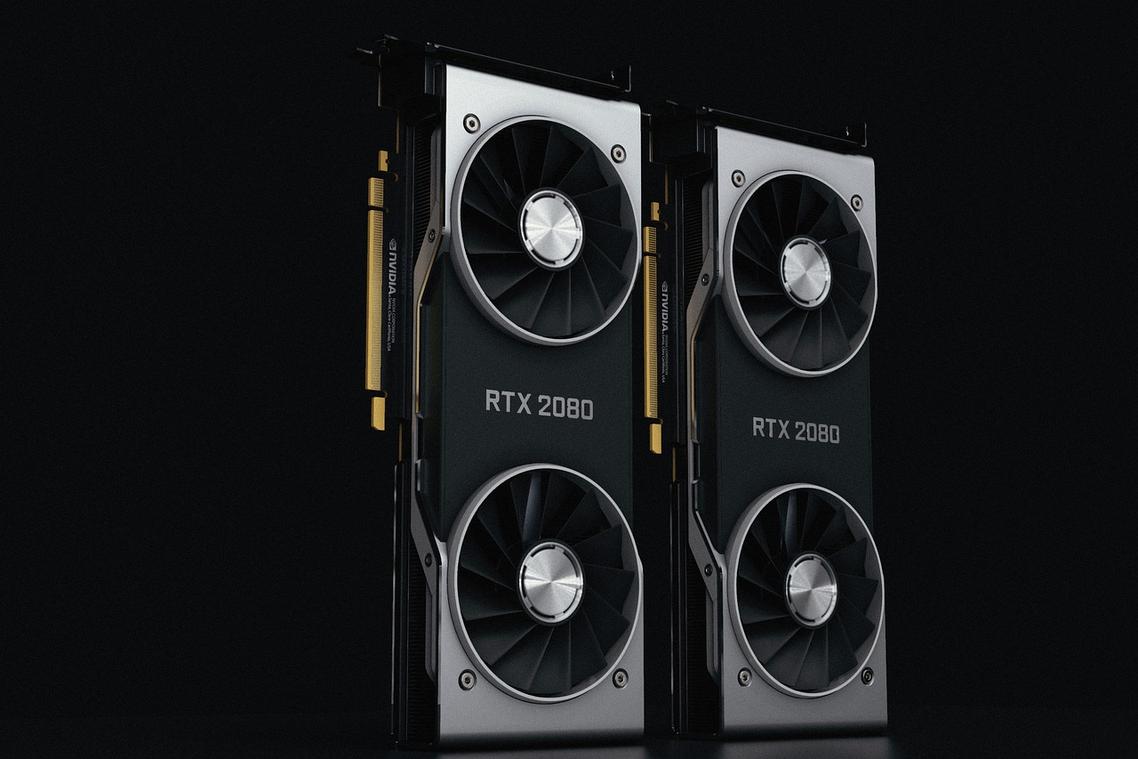
First things first: if you’re gaming on AMD with Linux, Mesa’s RADV Vulkan driver is the community favorite for a reason. RADV (an open-source Vulkan driver built into Mesa) typically delivers better performance and game compatibility than AMDVLK, AMD’s alternative Vulkan driver. In real-world benchmarks across titles like DOOM Eternal and Cyberpunk 2077, users frequently report smoother frame pacing and fewer odd glitches with RADV (Mesa documentation; community Phoronix tests).
Now, some argue AMDVLK is “more official,” so it must be better. Fair point. However, open-source collaboration often means faster bug fixes and broader game testing (many eyes, fewer gremlins). When it comes to linux graphics drivers performance, RADV usually takes the crown.
Next up: Feral’s Gamemode. Think of it as a butler for your CPU. When a game launches, Gamemode automatically switches your CPU governor to performance and applies system tweaks—then politely resets everything when you quit. No manual tinkering required (unless you enjoy that sort of thing).
For power users, there’s CoreCtrl, a graphical tool that lets you:
- Create per-game performance profiles
- Adjust GPU clock speeds
- Set custom fan curves
- Tune power limits
Pro tip: Small clock boosts can improve stability more than maxing everything out.
Finally, if both RADV and AMDVLK are installed, confirm your system defaults to RADV:
vulkaninfo | grep driverName
If you’re curious about containers too, check out understanding containerization docker vs podman explained. Different tools, same philosophy: pick what actually works.
Intel ARC: A Guide for Bleeding-Edge Performance
Start with the Right Foundation
First and foremost, Intel ARC GPUs demand a modern Linux kernel—think 6.2 or newer. Earlier kernels may boot, but you’ll likely face missing features, instability, or inconsistent frame pacing. ARC support matured rapidly upstream, so staying current isn’t optional; it’s foundational.
Next, Mesa matters just as much. Mesa is the open-source graphics stack that translates game instructions into something your GPU understands. Because ARC improvements land frequently, using the latest Mesa from a trusted PPA or a rolling-release distro ensures you receive critical fixes and performance boosts. In practice, this directly impacts linux graphics drivers performance across Vulkan and OpenGL titles.
Finally, enable Resizable BAR (ReBAR) in your UEFI/BIOS. ReBAR allows the CPU full access to GPU memory instead of small chunks at a time. ARC drivers are heavily optimized around this feature, and without it, performance can drop significantly (yes, it’s that important).
Your Next Steps to a Smoother Gaming Experience
Great Linux gaming isn’t a one-time setup—it’s an ACTIVE process. Your kernel, GPU drivers, and Mesa stack form the backbone of linux graphics drivers performance, and keeping them updated (and correctly configured) is what separates “it runs” from “it flies.”
Some argue modern distros handle this automatically. Fair—but default isn’t optimized. You’ve now moved beyond stock settings into a tuned system built for demanding titles.
Start simple:
- NVIDIA: Check PowerMizer and set maximum performance.
- AMD: Install and enable Gamemode.
Pro tip: Verify gains with MangoHud.
Small tweaks. REAL FPS gains. Ready to test? Try a demanding Proton title and compare results (see https://www.protondb.com).
Level Up Your Linux Gaming Performance Today
You came here to figure out how to get smoother gameplay, better compatibility, and more stable performance out of your Linux gaming setup. Now you have the tools, tweaks, and insights to make that happen.
From optimizing Proton compatibility to dialing in linux graphics drivers performance, every adjustment you make reduces stutter, boosts FPS, and eliminates the frustration of inconsistent gameplay. That pain point — spending hours troubleshooting instead of actually playing — is exactly what the right setup helps you avoid.
The next step is simple: apply these optimizations to your system today. Update your drivers, fine-tune your configuration, and benchmark your results so you can see the difference firsthand.
If you want step-by-step breakdowns, tested performance tweaks, and proven compatibility guides trusted by thousands of Linux gamers, start implementing the recommended setups now and explore deeper optimization resources. The smoother, high-performance Linux gaming experience you want is absolutely within reach — take action and unlock it.
 Founder & Chief Visionary Officer
Ask Eloria Neythanna how they got into tech industry buzz and you'll probably get a longer answer than you expected. The short version: Eloria started doing it, got genuinely hooked, and at some point realized they had accumulated enough hard-won knowledge that it would be a waste not to share it. So they started writing.
What makes Eloria worth reading is that they skips the obvious stuff. Nobody needs another surface-level take on Tech Industry Buzz, Proton Compatibility Insights, Linux Setup Optimization Tips. What readers actually want is the nuance — the part that only becomes clear after you've made a few mistakes and figured out why. That's the territory Eloria operates in. The writing is direct, occasionally blunt, and always built around what's actually true rather than what sounds good in an article. They has little patience for filler, which means they's pieces tend to be denser with real information than the average post on the same subject.
Eloria doesn't write to impress anyone. They writes because they has things to say that they genuinely thinks people should hear. That motivation — basic as it sounds — produces something noticeably different from content written for clicks or word count. Readers pick up on it. The comments on Eloria's work tend to reflect that.
Founder & Chief Visionary Officer
Ask Eloria Neythanna how they got into tech industry buzz and you'll probably get a longer answer than you expected. The short version: Eloria started doing it, got genuinely hooked, and at some point realized they had accumulated enough hard-won knowledge that it would be a waste not to share it. So they started writing.
What makes Eloria worth reading is that they skips the obvious stuff. Nobody needs another surface-level take on Tech Industry Buzz, Proton Compatibility Insights, Linux Setup Optimization Tips. What readers actually want is the nuance — the part that only becomes clear after you've made a few mistakes and figured out why. That's the territory Eloria operates in. The writing is direct, occasionally blunt, and always built around what's actually true rather than what sounds good in an article. They has little patience for filler, which means they's pieces tend to be denser with real information than the average post on the same subject.
Eloria doesn't write to impress anyone. They writes because they has things to say that they genuinely thinks people should hear. That motivation — basic as it sounds — produces something noticeably different from content written for clicks or word count. Readers pick up on it. The comments on Eloria's work tend to reflect that.