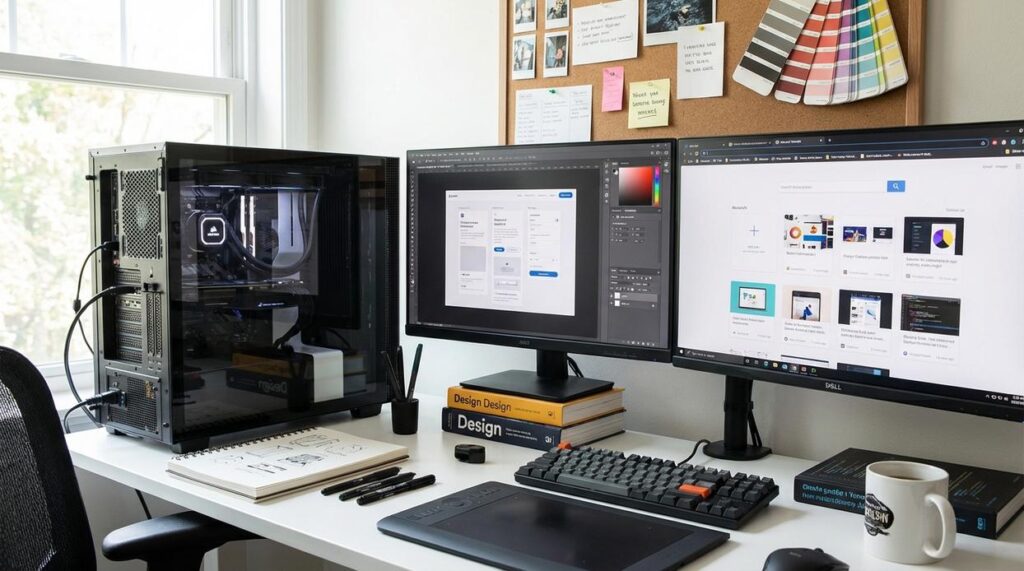
If you’re searching for a high-performance linux workstation setup, you’re likely looking to push your system beyond basic functionality—whether for gaming, development, content creation, or all three. The challenge isn’t just installing Linux; it’s optimizing it for maximum speed, stability, and compatibility with modern hardware and demanding applications.
This guide is built to help you cut through outdated advice and conflicting forum posts. We break down the essential components that truly impact performance: kernel selection, driver configuration, Proton compatibility layers, system-level tweaks, GPU optimization, and resource management strategies that make a measurable difference.
Our recommendations are based on hands-on testing across multiple distributions, real-world gaming benchmarks, and proven open-source performance practices. Instead of theory, you’ll get practical steps you can apply immediately to create a responsive, powerful Linux environment tailored to your workload.
By the end, you’ll know exactly how to configure, optimize, and maintain a workstation that delivers consistent, high-level performance.
Kernel Tuning: The Foundation of Low-Latency Performance
Back in 2019, low-latency kernels were mostly a niche recommendation for audio engineers. Fast forward to today, and after years of benchmarking across gaming and workstation builds, they’ve become the sensible default for performance-focused users.
Choosing the Right Kernel
A kernel is the core of your operating system—the traffic controller between hardware and software. Most distributions ship a generic kernel, built for maximum compatibility. A low-latency kernel reduces scheduling delays, helping tasks execute faster. Meanwhile, custom-compiled kernels like XanMod or Liquorix include aggressive performance patches.
Some argue generic kernels are “good enough” (and for office PCs, they are). However, for a high-performance linux workstation setup, reduced input lag and faster task switching are noticeable within minutes. For most users, a low-latency kernel is the best starting point—custom builds can come later.
Essential Sysctl Tweaks
Next, tune system behavior via /etc/sysctl.conf:
vm.swappiness=10vm.vfs_cache_pressure=50- Enable TCP BBR:
net.core.default_qdisc=fqandnet.ipv4.tcp_congestion_control=bbr
Swappiness controls how aggressively Linux moves memory pages to swap. Lowering it reduces disk access (which means fewer slowdowns). BBR, developed by Google in 2016, improves network throughput and latency (Google, 2016).
Some claim modern kernels auto-optimize memory well enough. Sometimes they do—but controlled tuning consistently improves responsiveness.
Understanding CPU Mitigations
Security patches for Spectre and Meltdown (disclosed in 2018) add overhead. Adding mitigations=off to boot parameters can reclaim performance.
However—and this is critical—only disable mitigations on trusted, single-user systems. Security always trumps speed.
For broader system streamlining, see the minimalist linux setup guide for maximum efficiency.
CPU Governor and Scheduler Optimization
Beyond “OnDemand”
Most Linux systems default to the OnDemand CPU governor (a governor controls how your CPU scales frequency based on load). It sounds smart—and for laptops, it often is. But for workstation tasks like compiling code, rendering video, or gaming, the ramp-up delay can introduce micro-stutter and inconsistent frame times.
Switching to performance locks your CPU at maximum clock speeds. That means zero hesitation when workloads spike (think boss fight, not buffering wheel). Alternatively, schedutil ties frequency scaling directly to the kernel scheduler for a modern, balanced approach—often smoother than OnDemand without burning full power constantly.
sudo cpupower frequency-set -g performance
Pro tip: Verify with cpupower frequency-info so you’re not tuning blind.
Automating Performance When It Matters
Manually switching governors gets old fast. Tools like gamemode (by Feral Interactive) automatically set the governor to performance when launching a game or heavy app, then revert afterward.
Example systemd override:
ExecStartPre=/usr/bin/cpupower frequency-set -g performance
What’s next? You’ll probably want per-app tuning—IDE boosted, browser relaxed. Gamemode handles this cleanly.
I/O Schedulers Explained
An I/O scheduler decides how disk read/write requests are ordered. For mechanical drives, bfq (Budget Fair Queuing) prioritizes desktop responsiveness—great for multitasking. On NVMe SSDs, where latency is already tiny, none or mq-deadline reduces overhead.
If you’re building a high-performance linux workstation setup, pairing performance with the right I/O scheduler ensures both CPU bursts and storage requests stay predictable. Next step? Measure with iostat or htop before and after—because optimization without metrics is just guesswork.
Unlocking Your GPU: Graphics and Compositor Tuning

Start With the Right Driver
First things first, choose the driver that matches your hardware and goals. If you’re running NVIDIA, install the latest proprietary driver from the official repository. It typically offers better day-one game support, DLSS features, and more consistent performance in Vulkan titles. Mesa (the open-source graphics stack for AMD and Intel) is excellent—but for NVIDIA, the proprietary route is still the clear recommendation.
On AMD and Intel, stick with the latest stable Mesa drivers. Mesa is an open-source implementation of OpenGL and Vulkan, and modern releases often deliver measurable FPS gains and faster shader compilation (see Mesa release notes). Keeping it updated is one of the simplest wins for a high-performance linux workstation setup.
Wayland or X11?
Next, pick your display server wisely. Wayland generally offers better mixed-DPI scaling and potentially lower input latency because it reduces legacy overhead. However, X11 still has broader compatibility with older apps and niche tools. If you game and multitask heavily, try Wayland first—then fall back to X11 if something breaks.
Tuning the Compositor
Finally, disable or unredirect fullscreen windows in KDE or XFCE. A compositor manages visual effects like transparency; turning it off for fullscreen apps reduces latency. Competitive gamers will feel the difference (yes, even if it’s just a few milliseconds).
Storage and Filesystem Performance Tweaks
I still remember the first time my game library started stuttering mid-load (nothing kills immersion faster). That frustration pushed me to rethink my high-performance linux workstation setup from the storage layer up.
Filesystem Choice Matters
On paper, ext4—a mature, journaling filesystem (a system that tracks changes before committing them)—wins for stability and raw speed. In my experience, it’s predictable and boring in the best way.
But then there’s BTRFS, a modern copy-on-write filesystem. With transparent compression like zstd:1 (a fast compression algorithm), I saw noticeably faster load times on compressible assets. Some argue BTRFS adds complexity—and they’re right—but the flexibility can outweigh that tradeoff.
Optimizing /etc/fstab
To reduce SSD wear and boost responsiveness:
noatime– stops constant access-time writesdiscard– enables TRIM for SSD longevitycommit=60– batches writes every 60 seconds
Leveraging ZRAM for Swap
Finally, ZRAM creates compressed swap in RAM. Instead of crawling when memory fills, the system stays responsive (think quick dodge roll instead of lag spike). Pro tip: enable it via your distro’s zram-generator for minimal setup.
Before diving into the essential steps for setting up a high-performance Linux workstation, it’s worth considering how compatibility layers like Wine and Proton can enhance your gaming experience on Linux, as discussed in our article on the key differences between the two – for more details, check out our Wine vs Proton: Key Differences for Gamers.
Build Your High-Performance Linux Gaming Edge
You came here to learn how to create a high-performance linux workstation setup that actually delivers smooth gameplay, better compatibility, and zero wasted resources. Now you understand how to fine-tune Proton, optimize system performance, and configure your environment for serious gaming power.
The real frustration with Linux gaming isn’t potential — it’s poor setup. Stuttering frames, broken compatibility layers, and underutilized hardware can ruin the experience. The difference between “Linux can game” and “Linux dominates” comes down to precision optimization.
Now it’s time to act. Apply the tweaks, test your Proton versions, benchmark your system, and refine your configuration step by step. If you want deeper breakdowns, advanced optimization strategies, and proven performance tweaks trusted by thousands of Linux gamers, explore more of our expert guides right now.
Stop settling for average performance. Dial in your system, eliminate bottlenecks, and turn your Linux machine into the gaming powerhouse it was meant to be.
 Founder & Chief Visionary Officer
Ask Eloria Neythanna how they got into tech industry buzz and you'll probably get a longer answer than you expected. The short version: Eloria started doing it, got genuinely hooked, and at some point realized they had accumulated enough hard-won knowledge that it would be a waste not to share it. So they started writing.
What makes Eloria worth reading is that they skips the obvious stuff. Nobody needs another surface-level take on Tech Industry Buzz, Proton Compatibility Insights, Linux Setup Optimization Tips. What readers actually want is the nuance — the part that only becomes clear after you've made a few mistakes and figured out why. That's the territory Eloria operates in. The writing is direct, occasionally blunt, and always built around what's actually true rather than what sounds good in an article. They has little patience for filler, which means they's pieces tend to be denser with real information than the average post on the same subject.
Eloria doesn't write to impress anyone. They writes because they has things to say that they genuinely thinks people should hear. That motivation — basic as it sounds — produces something noticeably different from content written for clicks or word count. Readers pick up on it. The comments on Eloria's work tend to reflect that.
Founder & Chief Visionary Officer
Ask Eloria Neythanna how they got into tech industry buzz and you'll probably get a longer answer than you expected. The short version: Eloria started doing it, got genuinely hooked, and at some point realized they had accumulated enough hard-won knowledge that it would be a waste not to share it. So they started writing.
What makes Eloria worth reading is that they skips the obvious stuff. Nobody needs another surface-level take on Tech Industry Buzz, Proton Compatibility Insights, Linux Setup Optimization Tips. What readers actually want is the nuance — the part that only becomes clear after you've made a few mistakes and figured out why. That's the territory Eloria operates in. The writing is direct, occasionally blunt, and always built around what's actually true rather than what sounds good in an article. They has little patience for filler, which means they's pieces tend to be denser with real information than the average post on the same subject.
Eloria doesn't write to impress anyone. They writes because they has things to say that they genuinely thinks people should hear. That motivation — basic as it sounds — produces something noticeably different from content written for clicks or word count. Readers pick up on it. The comments on Eloria's work tend to reflect that.