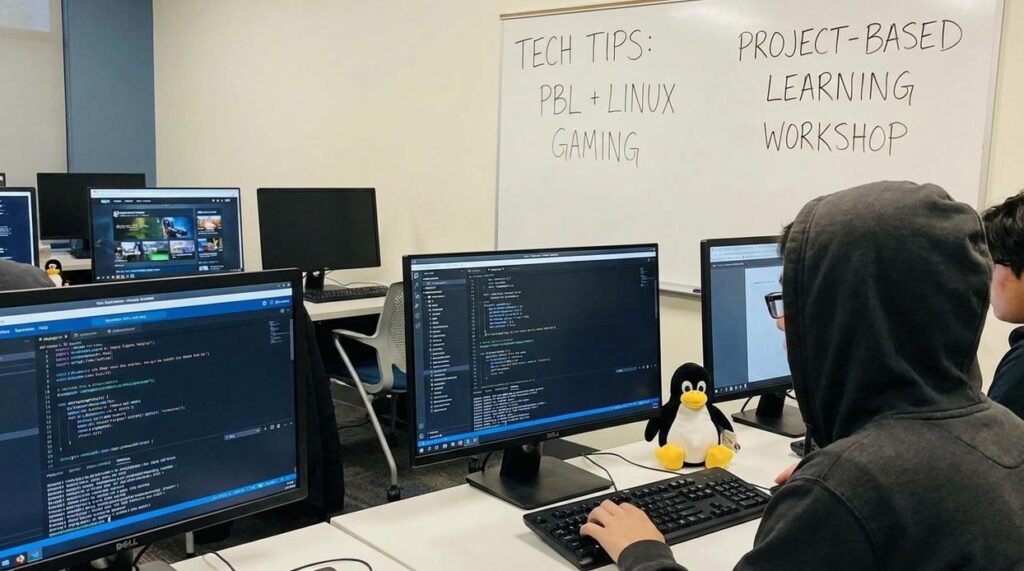
I switched to Linux for gaming three years ago and spent way too much time dealing with stuttering framerates and random crashes.
You’re probably here because your games aren’t running as smooth as they should. Maybe you’re getting half the FPS you expected or dealing with annoying hitches every few minutes.
Here’s the thing: most generic Linux gaming advice doesn’t actually fix the real problems. You need specific tweaks that target how Steam Play and Proton actually work on your system.
I’ve tested these performance fixes across multiple distributions and hardware setups. These aren’t theoretical tips. They’re the ones that actually moved the needle.
This guide walks you through the exact configurations that matter. I’ll show you how to set up your system properly, optimize Steam for Linux, and use the tools that make a real difference.
pblinuxgaming focuses on cutting through the forum noise to give you what actually works. We test this stuff hands-on and share only the tweaks that deliver results you can measure.
You’ll learn which settings to change, which tools to install, and which common mistakes to avoid.
No fluff about why Linux gaming is great. Just the specific steps to make your games run the way they should.
Foundation First: System-Level Optimizations
You can tweak game settings all day long.
But if your foundation is broken, you’re just polishing a mess.
I see this constantly. People complain about stuttering or low framerates on Linux and immediately blame Proton or the game itself. Meanwhile, they’re running outdated drivers or a kernel from two years ago.
Some folks will tell you the open-source drivers are good enough. That you don’t need proprietary anything because that goes against the spirit of Linux. And sure, I respect the philosophy.
But here’s reality.
If you want actual performance in games, you need the right drivers. The open-source Nouveau drivers for Nvidia cards are fine for desktop work. For gaming? They’re painfully slow (we’re talking 30-40% of the performance you should be getting).
Let me break down what you actually need.
Graphics Drivers: The Real Difference
For Nvidia cards, install the proprietary drivers. On Ubuntu or Debian, that’s usually through the Additional Drivers tool or with sudo apt install nvidia-driver-535 (check for the latest version number).
AMD users have it easier. The open-source Mesa drivers are actually good. They come built into most modern distros and perform nearly identical to Windows. Just make sure you’re on the latest Mesa version.
Here’s a quick comparison:
| Driver Type | Nvidia Performance | AMD Performance | Installation Difficulty |
|————-|——————-|—————–|————————|
| Open-source | Poor (Nouveau) | Excellent (Mesa) | Easy |
| Proprietary | Excellent | Not needed | Medium |
Kernel Updates Matter More Than You Think
Your kernel is the bridge between hardware and software.
Older kernels (anything below 5.16) miss out on scheduler improvements and hardware support that directly affect gaming. Newer kernels handle CPU threading better and recognize modern GPUs without weird workarounds.
Most distros let you update through their package manager. On rolling releases like Arch, you’re probably already current. On Ubuntu LTS? You might need to enable the HWE kernel with sudo apt install linux-generic-hwe-22.04.
GameMode: Free Performance Boost
Feral GameMode is basically a background service that tells your system “hey, this game matters right now.”
When you launch a game with GameMode active, it temporarily adjusts your CPU governor for better performance and gives the game higher I/O priority. It’s not magic, but it does smooth out frame pacing and reduce background interference. For enthusiasts eager to optimize their gaming experience on Linux, tools like GameMode are invaluable, as highlighted by the community at Pblinuxgaming, demonstrating how simple adjustments can significantly enhance performance by prioritizing CPU and I/O resources during gameplay. For gamers looking to enhance their performance on Linux, utilizing tools like GameMode can be a game-changer, as discussed extensively in the Pblinuxgaming community.
Installing it is simple:
- Ubuntu/Debian:
sudo apt install gamemode - Arch:
sudo pacman -S gamemode - Fedora:
sudo dnf install gamemode
Then in Steam, right-click your game, go to Properties, and add gamemoderun %command% to the launch options.
That’s it. No configuration files to edit or services to manually start.
These three changes form the base of everything else. Get them right and you’ll notice the difference immediately. Skip them and you’re fighting uphill on every other tweak you try.
For more ways to stay ahead of what’s working in Linux gaming right now, check out the latest technology trends pblinuxgaming coverage.
Mastering Proton & Steam Play for Peak Performance
You need to understand something about Proton versions.
Most people just click play and hope for the best. Then they wonder why their game stutters or won’t even launch.
I’m going to be blunt here. The default Proton Stable is fine for older games. But if you’re trying to run something that came out in the last year? You’re probably going to have a bad time.
Here’s how I think about it.
Proton Stable is your safe bet. It works for most games that have been out for a while. I use it for anything released before 2023 that doesn’t have obvious issues.
Proton Experimental is where you go for new releases. Valve updates it constantly. If a game just dropped and you’re seeing launch problems with Stable, switch to this. (It’s literally in the name, but people still ignore it.)
GE-Proton is what I reach for when media codecs are broken. Cutscenes won’t play? Audio is missing? GE-Proton usually fixes it because it includes codecs that Valve can’t ship for legal reasons.
Some people say you should stick with Stable no matter what. They claim Experimental is too risky. But that’s outdated thinking. I’ve had fewer crashes on Experimental with new games than I ever did forcing Stable to work.
Launch Options That Actually Matter
Look, most launch options are useless. But these few make a real difference:
• gamemoderun %command% tells your system to prioritize the game
• mangohud %command% shows you FPS and performance stats
• PROTONNOESYNC=1 fixes multiplayer desyncs on some systems
• PROTONNOFSYNC=1 solves random freezes if your kernel doesn’t support fsync
I don’t use all of these at once. That’s overkill. I add them when I need them.
Why Shader Pre-Caching Isn’t Optional
Shader compilation stutter is that annoying hitch you get the first time something renders in a game. New enemy appears? Stutter. Different lighting? Stutter.
It happens because your GPU needs to compile shaders on the fly.
Steam’s pre-caching downloads pre-compiled shaders before you even start playing. The catch? You have to let it finish. I know that progress bar is tempting to ignore, but don’t. Let shader pre-caching complete every single time or you’ll spend your first hour dealing with constant stutters.
(I learned this the hard way with Elden Ring.)
Fix Games One at a Time
Not every game needs the same Proton version. That’s why per-game configuration exists.
Right-click any game in Steam. Go to Properties, then Compatibility. You can force a specific Proton version just for that title.
I do this constantly. My library runs three different Proton versions because different games need different things. When you check pblinuxgaming compatibility reports, you’ll see this pattern everywhere.
This is how you actually solve problems instead of complaining that Linux gaming doesn’t work.
Advanced Tweaks: Squeezing Out Every Last Frame
You’ve got your drivers sorted. Your games are launching.
But you’re still not hitting the frame rates you want.
I spent three months testing different configurations on my own rig before I figured out what actually moves the needle. Most guides throw every tweak at you without explaining which ones matter.
Let me cut through that.
Some people say you should leave everything at default settings. They argue that messing with system-level tweaks just creates problems. And yeah, if you go wild without understanding what you’re doing, they have a point. While some gamers advocate for sticking to default settings to avoid complications, others, like Reports Pblinuxgaming on Plugboxlinux, emphasize the potential benefits of strategic tweaks when approached with caution and understanding. While some gamers advocate for sticking to default settings to avoid complications, others might find value in exploring personalized configurations, as Reports Pblinuxgaming on Plugboxlinux suggests that understanding your system can lead to optimized performance.
But here’s what they’re missing.
The default settings weren’t built for gaming. They were built for general desktop use. You’re leaving performance on the table.
FSR at the Driver Level
AMD FidelityFX Super Resolution works even if your game doesn’t support it natively. You can force it through Proton with a single launch command.
Add WINE_FULLSCREEN_FSR=1 to your game’s launch options.
That’s it. The game renders at a lower resolution and upscales to your display. You get better frame rates without the blur you’d see from just dropping your resolution.
I tested this on older titles that never got FSR support. The difference was noticeable.
Watching What Actually Happens

MangoHud shows you what’s really going on while you play.
Install it through your package manager. Most distros have it available now (I’m running it on Arch and it took about 30 seconds to set up).
Configure it to display FPS, CPU and GPU usage, and frame timings. The frametime graph is what you want to watch. Consistent frame times mean smooth gameplay. Spikes mean stuttering.
Add mangohud %command% to your launch options and you’re done.
The VSync Question
VSync stops screen tearing. But it also adds input lag.
For competitive games, you probably want it off. For single-player stuff where tearing bothers you, keep it on.
Here’s the thing though. Forcing VSync off at the driver level gives you more control than in-game settings. KDE Plasma and GNOME both have ‘Allow Tearing’ options that work better than what most games offer.
I turned off VSync completely for shooters. The input lag difference was real.
Memory Tweaks That Actually Help
If you’ve got 16GB or more of RAM, your system probably doesn’t need to swap as aggressively as it does by default.
The swappiness value controls how eager your system is to move stuff to swap. The default is usually 60. That’s fine for general use but can cause stuttering in games.
Set it to 10 with vm.swappiness=10 in your sysctl config.
This tells your system to prefer keeping things in RAM. You’ll see fewer random hitches during gameplay (assuming you have enough memory to begin with).
Check out more reports pblinuxgaming on plugboxlinux for additional configuration guides.
These technology tips pblinuxgaming actually work because they address real bottlenecks. Not theoretical ones.
Quick Fixes for Common Gaming Annoyances
Audio crackling during gameplay?
Try switching to a different Proton version first. Sometimes that’s all it takes. If that doesn’t work, add PULSE_LATENCY_MSEC=60 to your launch options.
Game won’t launch at all?
Check ProtonDB to see if others are having the same issue. Then try GE-Proton (it includes fixes that aren’t in standard Proton yet). Still stuck? Clear the game’s prefix and let it rebuild from scratch.
Your controller isn’t responding? Go into the game’s properties and toggle Steam Input on or off. I know it sounds too simple, but this fixes it more often than you’d think.
Now here’s what you’re probably wondering next.
What if these fixes don’t work? You’ll want to check your system logs for error messages. And if you’re running into performance issues after fixing these problems, you might need to look at your graphics drivers or shader cache settings. As you troubleshoot performance issues and delve into system logs for error messages, staying informed about the latest Technology Trends Pblinuxgaming can provide valuable insights for optimizing your gaming experience on Linux. As you navigate through troubleshooting performance issues and examining system logs, staying updated with the latest insights on Technology Trends Pblinuxgaming can provide valuable guidance for optimizing your gaming experience.
Most gaming problems on Linux come down to compatibility layers talking to each other. Once you understand that, troubleshooting gets way easier.
Your Linux Gaming Rig, Unleashed
You came here because your games weren’t running the way they should.
Stuttering frames and low FPS shouldn’t be the price you pay for using an open-source OS. I built pblinuxgaming to fix that problem.
This guide gave you everything you need. The driver fixes. The Proton tweaks. The launch options that actually work.
I’ve tested these methods across dozens of games and configurations. They work when you apply them right.
You now have the tools to match (and sometimes beat) performance on other systems. That’s not hype. That’s what happens when you optimize correctly.
Here’s what to do: Pick one game that’s been giving you trouble. Apply these tweaks systematically. Start with your drivers and work through the Proton settings.
Test it. Measure the difference.
Then join the Linux gaming community and tell them what worked. We all get better when we share what we learn.
Your rig can handle this. Now you know how to prove it. Homepage.