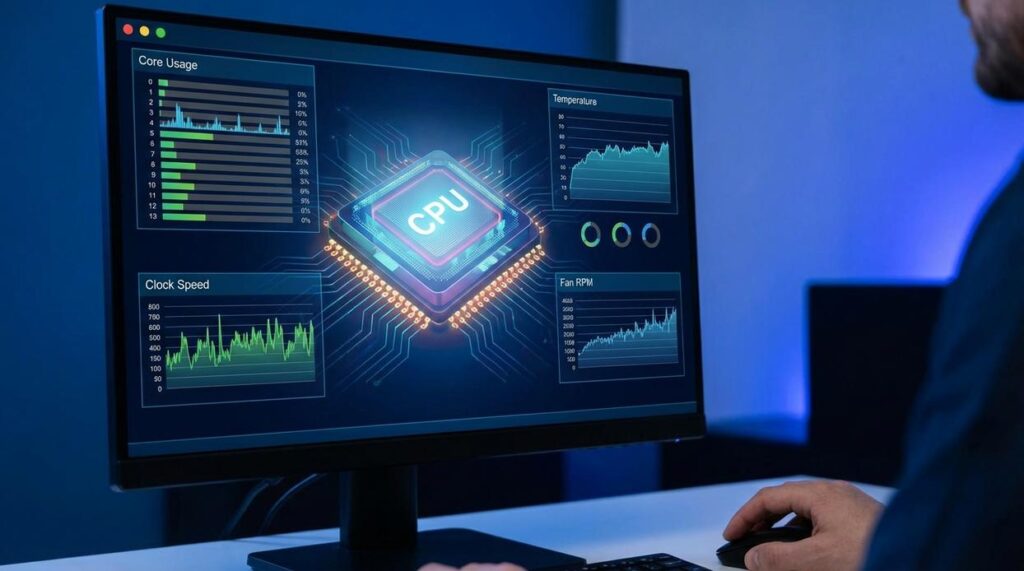
If you’re searching for reliable ways to improve your system’s speed and stability, understanding linux cpu performance monitoring is the first step. Whether you’re gaming on Linux, optimizing system resources, or troubleshooting sudden slowdowns, knowing how your CPU behaves under load can make the difference between smooth performance and constant frustration.
This article is built to match that exact need. We break down the most effective tools, explain what key metrics actually mean, and show you how to interpret real-time and historical CPU data to fine-tune your setup. Instead of vague advice, you’ll get practical guidance tailored to Linux users who want measurable performance gains.
Our insights are grounded in hands-on testing across multiple distributions, Proton-based gaming environments, and performance-tuned systems. By the end, you’ll know not just how to monitor your CPU—but how to use that data to unlock better, more consistent performance.
Why Your CPU is the Heart of Your Linux System
Your CPU (Central Processing Unit) executes every instruction your Linux machine handles—from compiling code to rendering frames in Steam. When it hits 100% utilization, tasks queue up, causing lag and stutter (like rush-hour traffic on a two-lane road).
Effective linux cpu performance monitoring relies on tools such as:
- top/htop for real-time usage percentages and load averages
- mpstat for per-core statistics and context switches
- uptime to check system load over 1, 5, and 15 minutes
High load averages exceeding core count signal bottlenecks. Watch iowait; slow disks may be limiting performance.
Your Command-Line Toolkit for Real-Time CPU Monitoring
When your system starts dragging—mouse lagging, game stuttering, fans screaming like a jet engine—you don’t have time for bloated dashboards. You need answers now. That’s where the terminal shines. For serious linux cpu performance monitoring, nothing beats fast, lightweight command-line tools.
The Classic: top
If Linux had a default heartbeat monitor, it would be top. Installed on nearly every distribution, it delivers a live, continuously updating list of processes—sorted by CPU usage by default.
At a glance, you’ll see:
- Load average (system demand over time)
- CPU states (user, system, idle, iowait)
- Memory usage
- The worst-offending processes
Ever notice your system feels slow but can’t explain why? Open top and watch the numbers. If one process is glued to 99% CPU, there’s your culprit (no guesswork required).
That said, some users find top… overwhelming. The interface feels like it hasn’t changed since dial-up internet. And yes, memorizing keyboard shortcuts can feel like studying for an exam.
The Upgrade: htop
Enter htop, the friendlier cousin. Think of it as top with a modern UI and social skills.
| Feature | top |
htop |
|---|---|---|
| Color-coded output | No |
Yes |
| Per-core CPU view | Limited | Yes |
| Mouse support | No | Yes |
| Easy process killing | Manual PID entry | Interactive |
With htop, each CPU core gets its own bar. Memory and swap usage are visual. You can scroll, expand process trees, and press F9 (or k) to kill a runaway task instantly.
Practical Use Case
Picture this: your game starts dropping frames mid-match (of course it does). You launch htop and spot a background updater hammering one core at 100%. A quick kill, and performance stabilizes.
Some argue GUI system monitors are “good enough.” Fair point—they’re convenient. But when your desktop freezes, the terminal still responds. That’s power.
Pro tip: Install htop before you need it. Crisis is a terrible time for package management.
For deeper optimization strategies, check out this Linux performance guide.
Analyzing CPU Performance Over Time with sar and vmstat

Sometimes performance issues are sneaky. The system feels fine now, but every hour there’s a mysterious spike—or a game stutters only during shader compilation. That’s when you stop guessing and start collecting data.
Logging with sar
The sar (System Activity Reporter) tool, part of the sysstat package, records historical system metrics at regular intervals. By default, many distributions log every 10 minutes. Run sar -u to review CPU utilization for the current day and pinpoint exactly when usage peaked.
Here’s my recommendation: ENABLE AND VERIFY sysstat FIRST. Don’t assume it’s running. Check the service, confirm logs exist in /var/log/sysstat/, and only then analyze trends.
Why? Because historical correlation is powerful. If CPU spikes align with cron jobs, backups, or shader cache rebuilds, you’ve found your smoking gun (yes, it’s often the backup script).
Pro tip: use sar -u -f /var/log/sysstat/saXX to inspect specific days for recurring patterns.
Broader Context with vmstat
While sar excels at history, vmstat 5 gives you live, five-second interval snapshots of CPU, memory, and I/O. This is essential for linux cpu performance monitoring when diagnosing active slowdowns.
I strongly recommend watching these columns together:
usandsyfor user vs. system CPU timewafor I/O waitsi/sofor swap activity
High CPU with high wa? That’s likely disk contention, not raw processing limits.
If you’re serious about tuning, pair these tools with broader strategies outlined in how to optimize linux for maximum system performance.
DATA FIRST. TWEAKS SECOND. That’s how you solve performance problems for good.
Decoding the Metrics: What CPU Numbers Actually Mean
Seeing a process spike to 90% CPU can feel alarming. However, raw percentages alone don’t tell the whole story. Context is everything (like judging a movie by one Rotten Tomatoes score).
Load Average Explained
First, consider load average. The three numbers shown in tools like top (for example, 0.50, 0.75, 0.80) represent the average number of runnable processes over the last 1, 5, and 15 minutes. In simple terms, this is your system’s “line at the checkout.”
- If load average is lower than your CPU core count, the system is comfortable.
- If it consistently exceeds your core count, processes are waiting in line.
Some argue that short spikes above core count are harmless—and they’re right. Brief bursts are normal. The real issue is sustained overload, which signals a bottleneck.
CPU Time Allocation: User vs System
Next, compare us (user time) and sy (system time):
- High
us→ Applications are doing heavy lifting (games compiling shaders, for instance). - High
sy→ The kernel is busy handling drivers or system calls.
If sy dominates, you might suspect driver inefficiencies. On the other hand, high us often means your workload is simply demanding.
The Hidden Culprit: I/O Wait
Now here’s the twist. A high wa (I/O wait) percentage means the CPU is idle—waiting on storage or network. CPU-bound vs I/O-bound is a critical distinction in linux cpu performance monitoring.
So which is worse?
- High CPU usage + low
wa→ Processor bottleneck. - Low CPU usage + high
wa→ Disk or network bottleneck.
Pro tip: Always compare load average with %wa before upgrading your CPU. Sometimes the “slow processor” is innocent.
Turning CPU Data into Smoother System Performance
You have the tools. Now act on them. When htop shows a single core pinned at 100%, don’t just restart the app—identify whether it’s poorly threaded software or a background task gone rogue. If sar reports sustained iowait, prioritize disk upgrades or filesystem tweaks. If usage is consistently high across all cores, consider scaling your CPU.
For practical linux cpu performance monitoring, follow this checklist:
- Confirm the bottleneck.
- Match the fix to the metric.
- Re-test after changes.
Data beats guesswork (every time). Small adjustments compound into noticeable gains over time.
Take Control of Your Linux Gaming Performance
You came here to figure out how to get smoother gameplay, better frame pacing, and fewer frustrating slowdowns on your Linux system. Now you understand how linux cpu performance monitoring gives you the visibility needed to spot bottlenecks, fine-tune resource usage, and unlock the performance your hardware is capable of delivering.
Ignoring performance data is what leads to stutter, thermal throttling, and inconsistent FPS — the exact pain points that ruin immersion. By actively tracking CPU behavior, optimizing Proton settings, and applying targeted tweaks, you’re no longer guessing. You’re making informed adjustments that directly impact your gaming experience.
Now it’s time to act. Start monitoring your CPU metrics during your next session, apply the optimizations outlined above, and benchmark the results. Gamers who consistently tune their systems see measurable gains in stability and responsiveness.
If you’re serious about eliminating performance bottlenecks and getting the most out of your Linux setup, dive deeper into advanced optimization guides and compatibility breakdowns today. Take control of your system now — smoother, more responsive Linux gaming starts with the right tweaks and the right tools.
 Lead Systems Analyst & Performance Engineer
Ramond Jonestevensen is the kind of writer who genuinely cannot publish something without checking it twice. Maybe three times. They came to linux performance tweaks through years of hands-on work rather than theory, which means the things they writes about — Linux Performance Tweaks, Tech Industry Buzz, Expert Breakdowns, among other areas — are things they has actually tested, questioned, and revised opinions on more than once.
That shows in the work. Ramond's pieces tend to go a level deeper than most. Not in a way that becomes unreadable, but in a way that makes you realize you'd been missing something important. They has a habit of finding the detail that everybody else glosses over and making it the center of the story — which sounds simple, but takes a rare combination of curiosity and patience to pull off consistently. The writing never feels rushed. It feels like someone who sat with the subject long enough to actually understand it.
Outside of specific topics, what Ramond cares about most is whether the reader walks away with something useful. Not impressed. Not entertained. Useful. That's a harder bar to clear than it sounds, and they clears it more often than not — which is why readers tend to remember Ramond's articles long after they've forgotten the headline.
Lead Systems Analyst & Performance Engineer
Ramond Jonestevensen is the kind of writer who genuinely cannot publish something without checking it twice. Maybe three times. They came to linux performance tweaks through years of hands-on work rather than theory, which means the things they writes about — Linux Performance Tweaks, Tech Industry Buzz, Expert Breakdowns, among other areas — are things they has actually tested, questioned, and revised opinions on more than once.
That shows in the work. Ramond's pieces tend to go a level deeper than most. Not in a way that becomes unreadable, but in a way that makes you realize you'd been missing something important. They has a habit of finding the detail that everybody else glosses over and making it the center of the story — which sounds simple, but takes a rare combination of curiosity and patience to pull off consistently. The writing never feels rushed. It feels like someone who sat with the subject long enough to actually understand it.
Outside of specific topics, what Ramond cares about most is whether the reader walks away with something useful. Not impressed. Not entertained. Useful. That's a harder bar to clear than it sounds, and they clears it more often than not — which is why readers tend to remember Ramond's articles long after they've forgotten the headline.